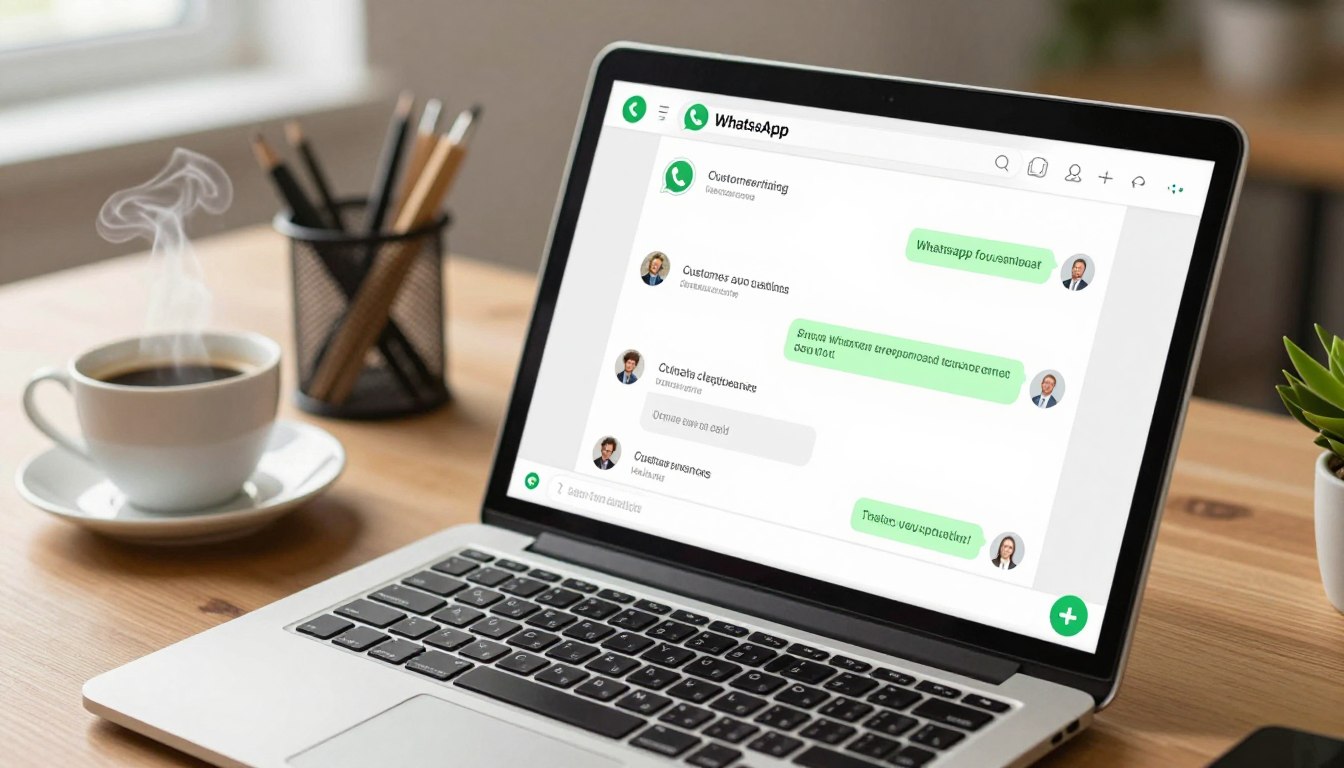

You can use WhatsApp Business on a PC by linking the account already active on your phone. A linked device is a computer or companion phone paired with the primary WhatsApp account so it can access chats without becoming a separate account. You need the phone to get started, but a computer can make customer communication easier with a keyboard and larger screen. It can also save time when you handle detailed replies or files.
Key Takeaways
- Set up and verify your account on a phone first.
- Choose WhatsApp Web for quick browser access.
- Choose WhatsApp Desktop for a dedicated computer app.
- Link the computer through Linked Devices on your phone.
- Use chats on a larger screen for customer replies and file sharing.
Both routes connect to the account you already use; neither creates a separate business account on the computer. Choose the browser for a quick session or the desktop app for a regular computer-based routine.
What do you need before linking a PC?
Start with an active WhatsApp Business account on your phone, not an account-creation screen on your PC. The phone app is where you register the business account and verify its phone number. That setup comes first, because a computer can only connect to an account that already works on a phone.
The account requires a phone number that can receive a verification text or call. During registration, the app asks you to enter a business name and category, then add a profile image. These details help customers recognize the business when they see its profile in a conversation.
The same phone number cannot be active on WhatsApp Messenger and WhatsApp Business at the same time.
If you currently use personal WhatsApp Messenger and want both accounts active, use a different number for the Business account. A number that is already registered to Messenger cannot serve both apps simultaneously, so choose the business number before starting registration.
The WhatsApp Business app is free to download from Google Play Store or Apple App Store. Install it on your phone, open it, and follow the registration prompts. The app verifies the number by text or phone call before you can finish creating the business profile.
Account setup and computer access are separate steps. Registration creates the account on the phone; linking later gives a computer access to that existing account. A tablet or PC cannot replace the phone during initial registration.
Have the phone nearby while registering so you can receive the verification message or call. If you cannot access the business number, registration cannot be completed until that number is available. Before moving to the computer, confirm the business number can receive its verification text or call.
How to Install Business WhatsApp in PC
The simplest free way to use WhatsApp Business on a PC is to open WhatsApp Web in a browser and link your phone account. No separate computer download is needed for that route. If you prefer an installed desktop app, WhatsApp Desktop also connects to the account already active on your phone.
Using a PC does not create a second WhatsApp Business account. Both options give the computer access to the existing business account, so your chats remain associated with the phone account. You still need internet access and a compatible computer and browser or operating system.
WhatsApp Web is the browser-based option. Open web.whatsapp.com on your computer, then link it to the phone account. It is useful when you need to handle customer messages from a computer but do not want to install another app.
WhatsApp Desktop is an installable computer app for Windows and Mac. Download it through the computer’s official app store, open it, and connect it to the phone account. Once linked, you can use the desktop app instead of keeping a browser tab open.
Both official routes let you use the service without paying for a separate management platform. The web option needs no computer-app download, while the desktop app is installed locally. The free mobile app is still needed to register and manage the account on the phone.
These options differ from third-party Android emulators, which imitate a mobile device on a computer. An emulator is not needed for PC access, and it is not a recommended substitute for the official web or desktop route.
Choose based on how you work: a browser can be convenient on a computer you use occasionally, while an installed app suits a regular routine. Use WhatsApp Web for occasional access and choose WhatsApp Desktop if you want a dedicated app on your computer.
Should you use WhatsApp Business Web or the desktop app?
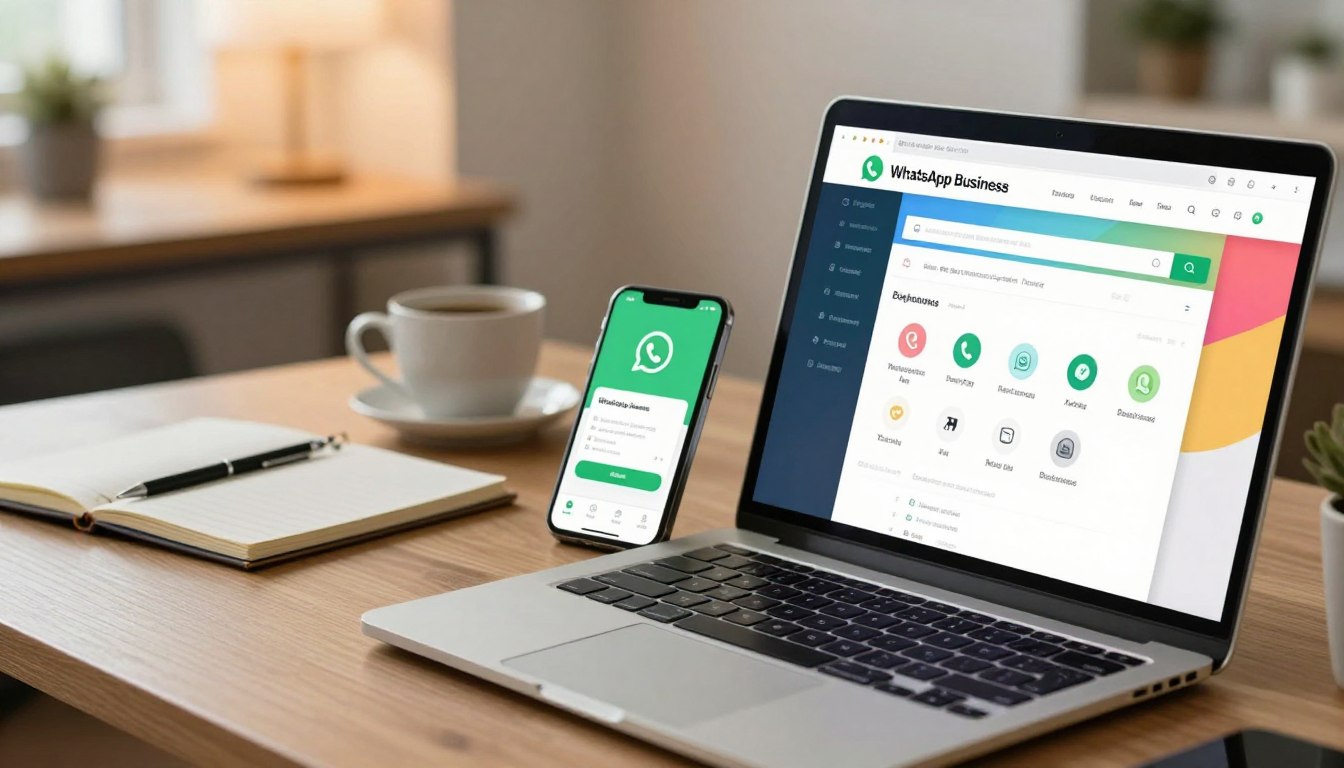
WhatsApp Web is the quickest route for a one-off session, while WhatsApp Desktop suits people who use the same computer regularly. The main difference is where it opens: business web access runs in a browser, while the desktop app is installed on the computer.
Choose the browser when you want access without another installation. Choose WhatsApp Desktop when you want a dedicated computer app you can open from the desktop or app menu. Both connect to the same phone account, so your choice is about convenience rather than creating a different account.
| Option | Where it opens | Separate installation | Best fit |
|---|---|---|---|
| WhatsApp Business Web | Web browser at web.whatsapp.com | No | Quick or occasional access |
| WhatsApp Desktop for Windows | Installed Windows app | Yes | Regular PC use |
| WhatsApp Desktop for Mac | Installed Mac app | Yes | Regular Mac use |
WhatsApp Business Web works best in Chrome, Edge, or Safari on macOS. If you already use one of those browsers, you can open the web version without adding software. The browser route is also practical when you need a short session on a computer that is not yours.
The installed app keeps access in its own window rather than a browser tab. That can make a regular PC routine feel more direct, especially if you return to customer conversations throughout the workday. WhatsApp Desktop is available for Windows and Mac.
Consider who else uses the computer before you pick a route. On a personal work computer, a dedicated app may be convenient. On a shared computer, a browser session is easier to close and log out of when you finish.
A browser also avoids leaving a separate installed app on a computer you use only once. The desktop app makes more sense when you return to that same machine often. On a shared computer, prefer a browser session you can log out of when you finish.
How do you set up WhatsApp Business Web in a browser?
Leave the computer’s QR-code page open while you bring up WhatsApp Business on the phone. The browser and phone work together: the computer displays a code, and the phone account links to it. You do not need to download a computer app for this setup.
Scan the code from Linked Devices on the phone to link the browser session. Complete these steps in order, keeping both screens available until your chats appear.
- Open web.whatsapp.com in the computer’s web browser and leave the QR code visible.
- Open WhatsApp Business on the phone and choose Linked Devices. On iPhone, it may appear under Settings; on Android, open the menu.
- Tap Link a Device on the phone to start the linking process.
- Scan the QR code on the computer with the phone and wait for your chats to load.
The code is temporary and expires in roughly 60 seconds. If it expires before the phone scans it, refresh the computer page to show a new code. Keep the QR page open while you return to Linked Devices and try again.
Once the link succeeds, the browser loads your conversations. You can then use the computer keyboard to read and reply to customer messages. The phone remains the account’s primary device, while the browser becomes a linked device.
If the page stays on the QR screen after scanning, check that the phone has an internet connection and that you scanned the code currently displayed. A refreshed page replaces the old code, so scan the newest one. Confirm that your recent conversations have loaded before closing the phone app.
How do you install WhatsApp Business on Windows 10 or 11?
On a Windows PC, install WhatsApp Desktop from Microsoft Store, then connect it to the account on your phone. The store route is straightforward: find the app, install it, and open it before linking the phone account.
WhatsApp Desktop lists Windows 10 version 1903 or higher and Windows 11 as supported requirements. The same desktop app serves personal and Business accounts. It does not mean one app instance can run both accounts at once.
Install WhatsApp Desktop from Microsoft Store
Use Microsoft Store for the Windows download. Check the app name before installation, then launch WhatsApp Desktop when the install finishes. It displays a QR code for account linking; use the Linked Devices flow on your phone that you used for the browser route.
- Open Microsoft Store on the Windows computer.
- Search the store for WhatsApp.
- Choose WhatsApp Desktop and install the app.
- Launch the app, then link the phone account through Linked Devices.
The desktop app is a separate computer program, not a new business account. If you already use that app for a different WhatsApp account, choose WhatsApp Web or another available route for the business account. Do not assume one app instance can keep two accounts open at once.
Set up WhatsApp Desktop on a Mac
On a Mac, use the Apple App Store to get WhatsApp Desktop. Search for WhatsApp, install the app, and open it when the download finishes. The app displays a QR code so you can connect the account on your phone.
Both computer app stores provide an official route for downloading the desktop app. Avoid lookalike downloads from unrelated sites, especially when the app is about to connect to customer conversations. Check that the app came from the computer’s official app store before linking your business account.
What if your computer runs Windows 7?
Windows 7 falls outside the stated Windows requirements for WhatsApp Desktop. Do not count on the installed app working on that system. The stated desktop requirements include Windows 10 version 1903 or higher and Windows 11.
WhatsApp Web is the only practical official PC option to try on Windows 7, and only if the computer can run a compatible, supported browser. A browser opening the page once does not make Windows 7 a supported system.

| Computer system | WhatsApp Desktop status | Practical next option |
|---|---|---|
| Windows 10 version 1903 or higher | Within stated requirements | Install from Microsoft Store |
| Windows 11 | Within stated requirements | Install from Microsoft Store |
| Windows 7 | Outside stated requirements | Try WhatsApp Web only with a compatible, supported browser |
If your browser can load web.whatsapp.com and supports the current service, you can try the browser route. Its performance may depend on whether the browser still receives security updates and can display the current site correctly.
A browser session is not a reason to install an unofficial desktop package. Third-party emulator downloads can introduce extra software and ask you to connect an account outside the official options. They are not a safe workaround for an older Windows version.
If the browser cannot load WhatsApp Web reliably, use a supported computer rather than entering account details into an unofficial workaround.
What happens when you link extra devices?
Linking a computer adds access to the existing account, not another primary phone. Linked devices extend access to chats while keeping the primary phone as the account’s main device. A companion phone can also be linked through a separate setup choice.
One WhatsApp Business account supports one primary phone and up to four linked devices at the same time. Those devices can keep working while the primary phone is offline, but they log out if it stays offline for more than 14 days.
Linked computers can work while the primary phone is offline
Once linked, WhatsApp Web and WhatsApp Desktop can continue working when the primary phone is temporarily offline. The 14-day offline limit still matters: after that period, linked devices are logged out and need to be linked again.
Messages on WhatsApp Web and WhatsApp Desktop use the same end-to-end encryption as messages in the mobile app. End-to-end encryption means the conversation is protected between the people communicating, rather than being openly readable as it travels between devices.
Keep the linked-device list in mind as you change computers. A work laptop you no longer use may still appear as an active session. Review the list periodically and remove access that no longer belongs on your account.
A companion phone has a location-sharing limit
You can link a second smartphone by choosing Link as companion device on that phone. Then scan its QR code with the primary phone. The companion phone can access the account as a linked device, but it does not become a second primary phone.
Live location is unavailable on companion phones. If you need to share live location, use the primary phone instead. This limit applies to the companion-phone setup, not to ordinary computer access.
Use this short security checklist when you review your linked devices:
- Link only computers you trust.
- Review Linked Devices and log out sessions you no longer use.
- Avoid leaving an account open on a shared computer.
Remove a computer you no longer control from Linked Devices as soon as access is no longer needed.
What can you do with customer chats on a PC?
A computer is most useful when a customer message needs a detailed reply or a file already saved on your work device. The larger screen helps when you need to read a long conversation and check a document before answering.
WhatsApp Web and WhatsApp Desktop support customer messaging and file sharing. Use the full keyboard for longer replies, then attach work files such as quotes, invoices, or product photos from the computer.
Reply and share files from the computer
Typing on a full keyboard can make a careful customer reply easier than writing it on a phone. The computer also lets you select a saved file directly, which is handy when a customer needs a quote or product image.
You can keep a spreadsheet or customer record open beside the chat while you respond. That makes it easier to refer to order details, but the chat itself is not a full team inbox. It does not replace a dedicated system for assigning conversations across a team.
Use the Business app’s built-in conversation tools
WhatsApp Business includes quick replies, labels, greeting messages, and away messages. These tools can help you manage chats by answering common questions, organizing conversations, and setting expectations when you are not available.
Broadcasts can reach up to 256 contacts, but you manage broadcast lists from the mobile app. They are not managed from PC Web or Desktop, so keep broadcast-list setup on the phone. Use the computer for individual customer conversations and file sharing.
Broadcast lists reach up to 256 contacts and are managed from the mobile app, not WhatsApp Web or WhatsApp Desktop.
Quick replies are useful for routine details, while labels help you sort active customer conversations. Greeting and away messages can provide a first response when you cannot reply personally. Keep broadcast-list setup on the phone, and use the computer for individual customer conversations and file sharing.
Conclusion
For quick access, start with WhatsApp Web; for a regular computer routine, install WhatsApp Desktop. Both options connect to the active phone account, so you can keep customer conversations on the account you already use.
The browser route avoids a separate computer-app installation. The desktop option gives you a dedicated app for regular use. Choose the official route that fits the computer in front of you, then connect the phone account. Open Linked Devices on your phone and connect only the computer you intend to use.
FAQ
Can I login to WhatsApp Business on desktop?
Yes, you can log in by linking the active phone account to WhatsApp Web or WhatsApp Desktop. Open the chosen option on your computer and scan its QR code with the phone through Linked Devices. The computer then accesses the existing account, rather than creating a separate business account. Keep the phone available for the initial connection.
Can I use WhatsApp Business without a phone number?
No, WhatsApp Business registration requires a phone number that can receive a verification text or call. The account must also be active on a phone before you can link a computer. During setup, you verify the number and create a business profile with a name, category, and image. Computer access comes after that phone setup.
Can I open WhatsApp on my computer without my phone?
Yes, a linked computer can keep working while the primary phone is offline, but you need the phone to link the computer initially. Linked devices log out if the primary phone stays offline for more than 14 days. Keep the phone account active and accessible so you can restore computer access if a session ends.
How can I download WhatsApp Business 2026?
Download the mobile app through Google Play Store or Apple App Store, then register and verify a phone number. On a PC, use WhatsApp Web or install WhatsApp Desktop instead of expecting a separate PC account. Both computer options connect to the account set up on your phone. Use the official app store for the computer version.
Can I install WhatsApp Business on my PC?
Yes, you can install WhatsApp Desktop for Windows or Mac, or use WhatsApp Web in a browser. Either route links to your existing phone account, so you do not create a separate PC account. The desktop app is suited to regular computer use, while the browser route avoids a separate installation.
How do I install WhatsApp Business?
Install the mobile app from Google Play Store or Apple App Store, register a phone number, verify it by text or call, and create the business profile. Add a business name, category, and profile image during setup. Once the account is active on your phone, you can link WhatsApp Web or WhatsApp Desktop to use it on a computer.
If you want to dig further into what are major parts of computer system essen, read our What Are Major Parts of Computer System Essen guide.
If you want to dig further into global system of interconnected computer netw, read our Global System of Interconnected Computer Netw guide.
If you want to dig further into what are five main components of computer sys, read our What Are Five Main Components of Computer Sys guide.

 By
By